


Apple Wallet and Google Wallet passes for LatePoint
Give every LatePoint appointment its own wallet pass. Customers save it from the booking confirmation, and it updates on their phone when the appointment changes.
New accounts get free pass credits to start. Tested with LatePoint 5.7.6 (free) in October 2026.
Setup
Set up LatePoint wallet passes in four steps
Install the plugin
In WordPress, go to Plugins, then Add New, and search for WalletPassBuilder.
Connect your account
Open WalletPassBuilder in the admin menu and paste the API key from your dashboard.
Design the pass
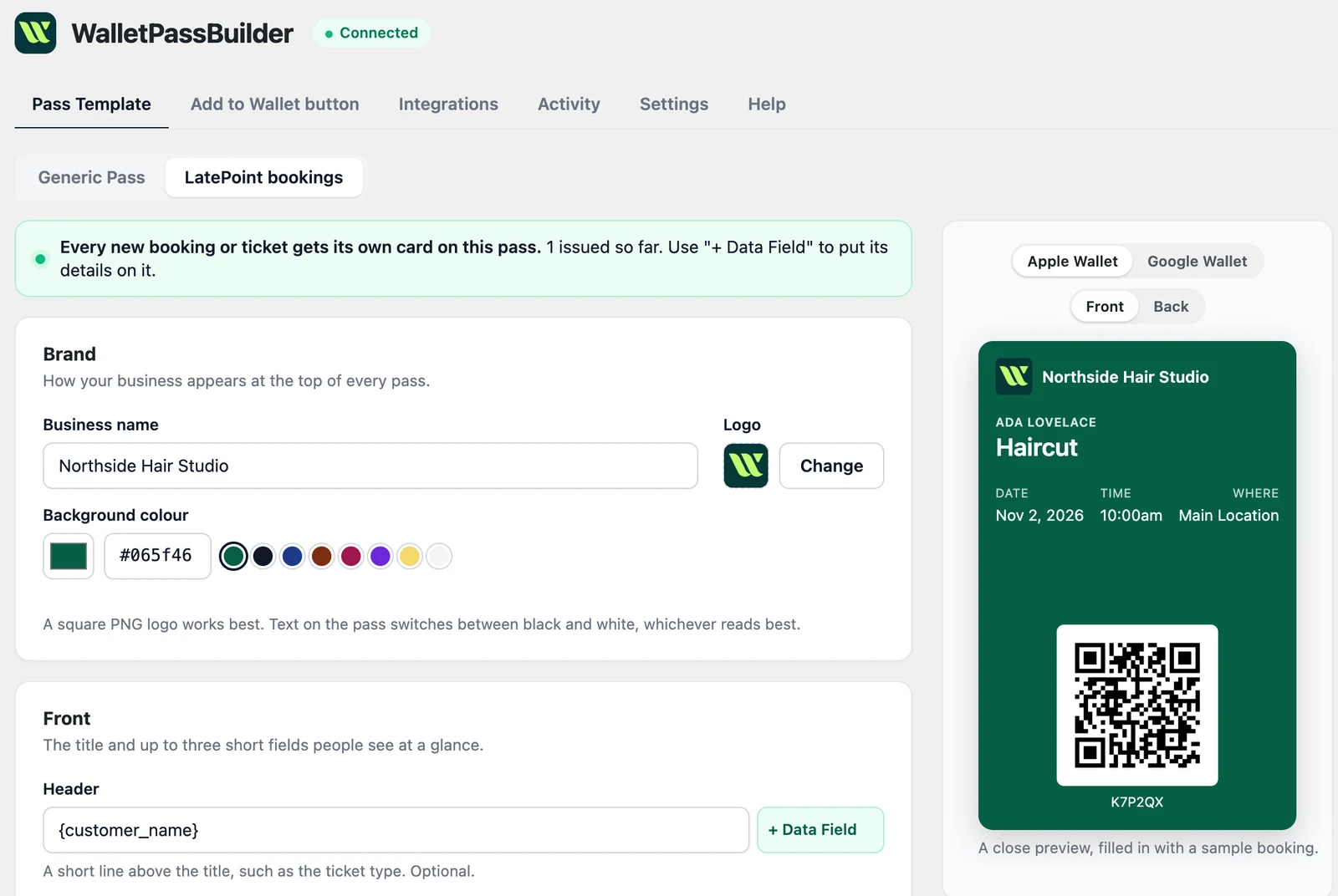
On the Pass Template tab, choose LatePoint bookings and make it yours.
Turn on LatePoint
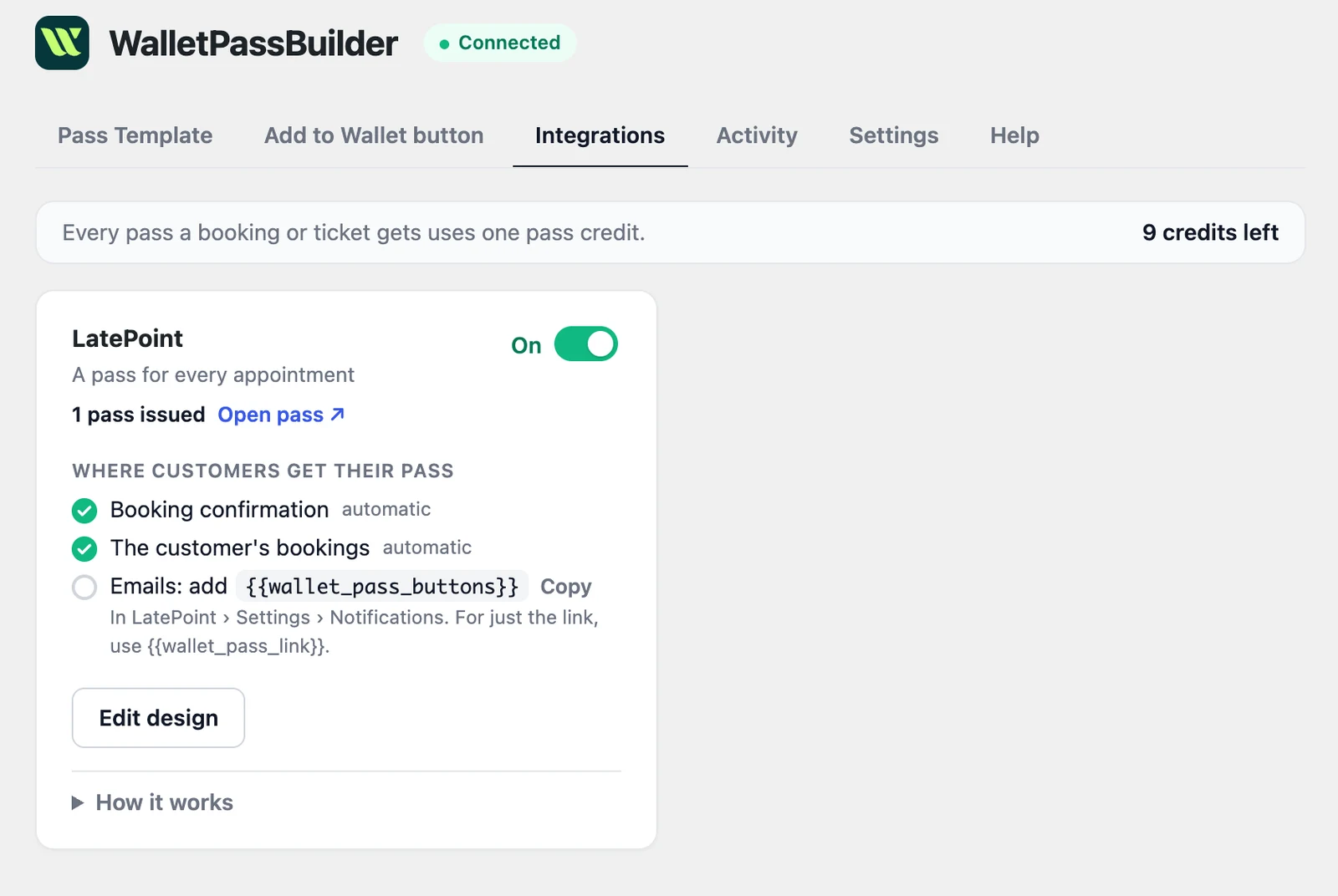
Switch it on under the Integrations tab. New bookings get their pass from then on.
Want every detail? Read the WordPress setup guide
Add to Wallet
Where customers save their LatePoint pass
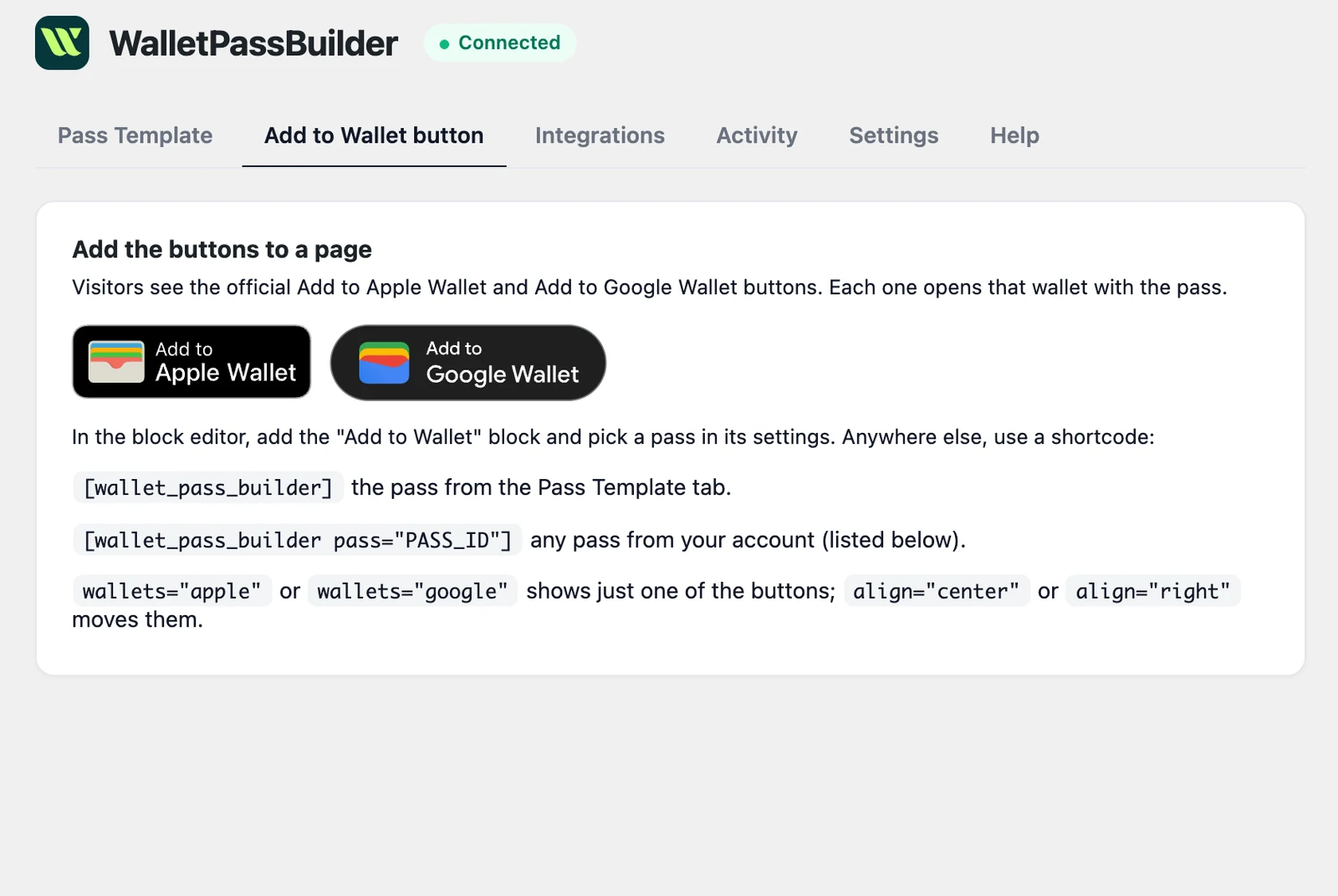
Once the integration is on, the official Add to Apple Wallet and Add to Google Wallet buttons appear by themselves in LatePoint's own screens.
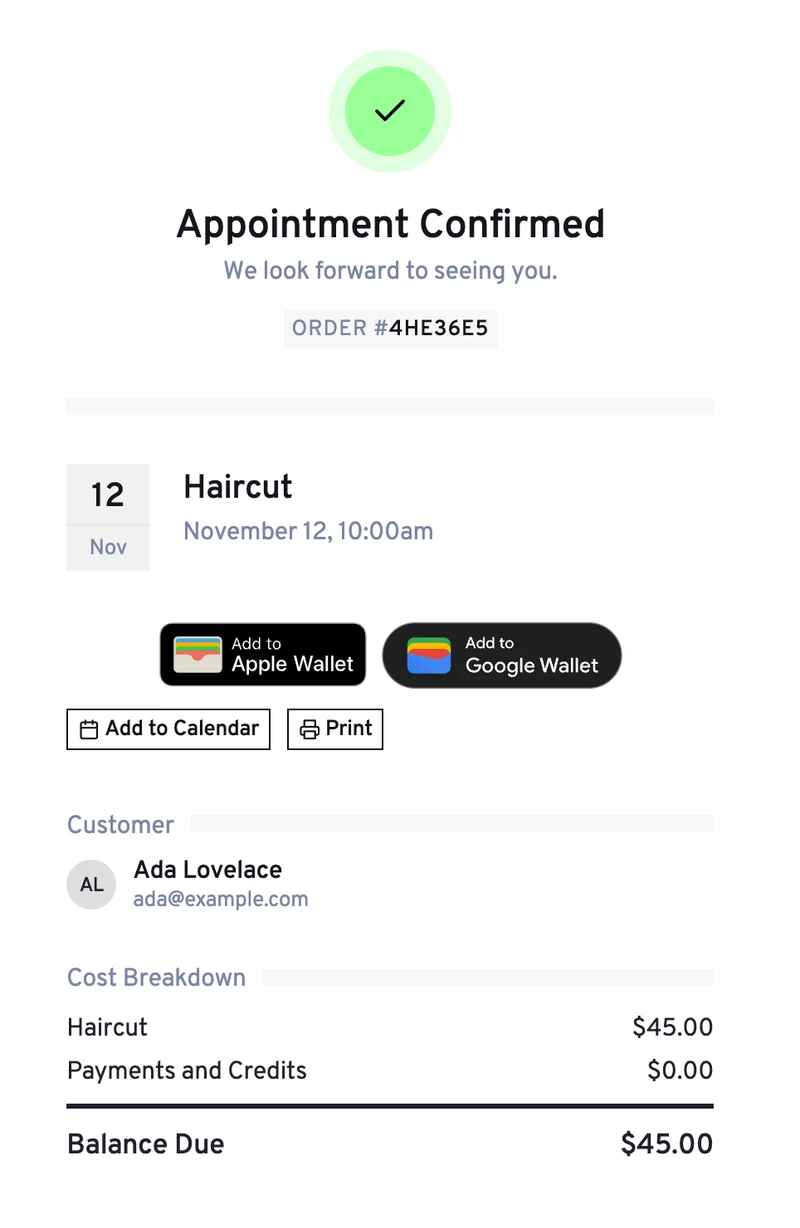
Booking confirmation
On the last step of the booking form, right after the customer books.
The customer's bookings
On each appointment in their LatePoint account, and in the summary they open from an email.
LatePoint's emails
Add a tag to a template in LatePoint under Settings > Notifications. Both tags are listed in its variable picker.
- {{wallet_pass_buttons}}
- The Add to Wallet buttons
- {{wallet_pass_link}}
- A plain link to the pass
On the pass
Every LatePoint appointment's details, on the customer's phone
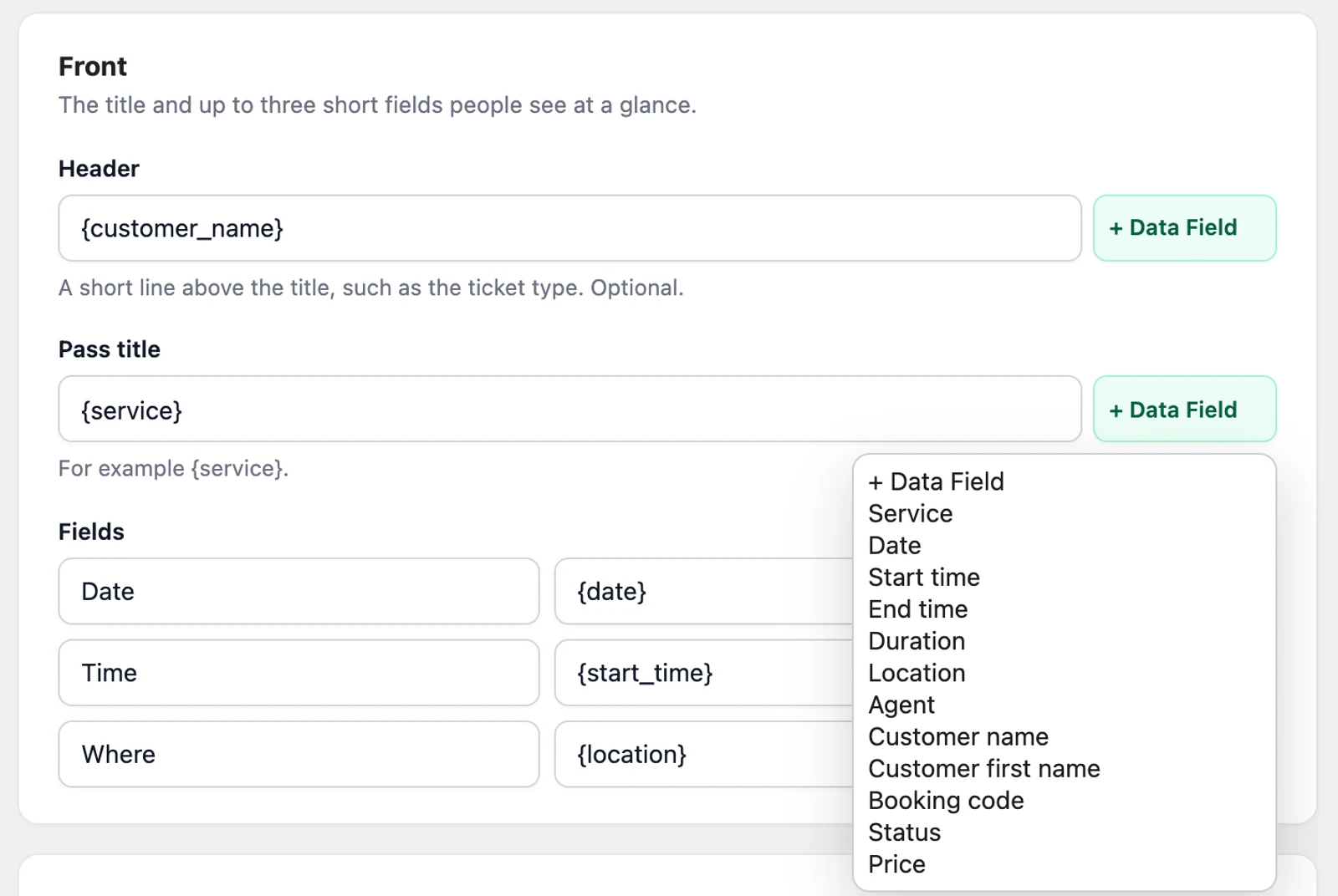
A new booking pass shows the customer's name, the service, the date, time and location, and the booking code as a QR code. You can move any of these around or add others in the editor.
- Service
- Date
- Start time
- End time
- Duration
- Location
- Agent
- Customer name
- Customer first name
- Booking code
- Status
- Price
Ada Lovelace
Haircut
Date
Nov 12
Time
10 AM
Where
Downtown
K7P2QX
Ada Lovelace
Haircut
K7P2QX
Date
Nov 12
Time
10 AM
Where
Downtown
Stays up to date
When a LatePoint appointment changes, so does the pass
Booked
The appointment gets its own pass straight away, whether it's confirmed or pending approval.
Rescheduled or edited
Change a detail the pass shows, such as the time or the agent, and the saved pass updates. Changes that don't touch the pass send nothing.
Cancelled
The status on the pass changes to Cancelled, and the Add to Wallet buttons no longer appear for that booking.
Deleted
The pass stays as it is, and the plugin's Activity tab records that the booking was deleted.
Compared
LatePoint wallet pass or calendar invite?
LatePoint can already add an appointment to a calendar. A wallet pass does a different job, and customers can use both: the buttons sit together on the confirmation.
| Calendar invite | Wallet pass | |
|---|---|---|
| Updates when the appointment changes | No, a saved event stays as it was | Yes, on the customer's phone |
| Booking code ready to scan | No | Yes, as a QR code |
| Shows in the customer's schedule | Yes | No |
| Lock-screen reminder | Yes, from their calendar app | Optional, at the start time |
| Reminder near your location | No | Optional |
Who it's for
Who LatePoint wallet passes are for
Salons and barbers
Put the service, stylist and time on the pass, so clients see the new time straight away if an appointment moves.
Wallet passes for salonsClinics and wellness
Show the time and location at a glance. Anyone who sees the phone can see a pass, so you can leave a sensitive service name off it.
Tutors and coaches
Students keep the session, tutor and place in their wallet, and the pass changes if a session moves.
Consultants and advisers
Put the meeting time and place on the front, and your website or contact details on the back of the pass.
LatePoint questions
- Do my customers need to install an app?
- No. The pass opens in Apple Wallet or Google Wallet, which they already have on their phone. On a computer, the button opens a page with a QR code to scan with their phone.
- Does it work with the free version of LatePoint?
- Yes. We tested it with the free LatePoint plugin from WordPress.org, from booking through to the Add to Wallet buttons on the confirmation.
- What does it cost?
- The plugin is free. It uses pass credits from your WalletPassBuilder account: 1 per pass created or saved to a wallet, whichever total is higher. Updating passes doesn't use credits, and new accounts get free pass credits to start.
- Do appointments I already have get a pass?
- Passes start with appointments booked or changed once the integration is on. Older appointments don't get one unless they change.
- Is my customer's contact information on the pass?
- No. Customer email addresses and phone numbers are never sent to WalletPassBuilder, because anyone who sees the phone can see a wallet pass.
- Can I remind customers about their appointment?
- Yes. In the pass editor's Advanced section, you can turn on a lock-screen reminder for the appointment's start time, or for when the customer is near your location.
- What if a booking doesn't get a pass?
- Check that LatePoint is turned on under the plugin's Integrations tab, then look in Activity. A failed entry says why, and Retry sends it again. The plugin also checks every 15 minutes for anything that failed.
Use another plugin? See everything the WordPress plugin works with
Be on the lock screen in a few minutes.
Your first pass is quick to make. Pick a template, add your logo, and share the link.