

Guide
How to create an Apple Wallet pass with Grok
Grok can create an Apple Wallet pass from a sentence. Add WalletPassBuilder to Grok once as a connector, describe the card in a chat, and Grok hands back a link that adds it to Apple Wallet on an iPhone or Google Wallet on Android. The same connection lets Grok change the pass later, message everyone who saved it, and run a loyalty stamp card.
Last updated November 4, 2026. Facts about Apple Wallet and Google Wallet were checked against Apple’s and Google’s own documentation, linked in the sources.
The short answer
- Go to grok.com/connectors, click New Connector, choose Custom and paste
https://walletpassbuilder.com/api/mcp. - Sign in to WalletPassBuilder and approve the connection.
- Describe the pass you want. Grok creates it and gives you its share link.
Nothing to install, no code, and no template to design first. You need a WalletPassBuilder account (new accounts get free pass credits to start) and a Grok account.
What Grok can do once connected
WalletPassBuilder’s MCP server gives Grok these actions. Grok picks the right one from what you ask; you never name them.
| You ask Grok to… | What happens |
|---|---|
| Create a pass | A pass for Apple Wallet and Google Wallet, with one share link |
| Make a card for each person on a list | One card per person, each with its own link |
| Change a pass or one person's card | Only what you name changes; saved copies update on every phone |
| Start a loyalty stamp card | A program with a sign-up link; each customer gets their own card |
| Add a stamp | The customer's card shows the new stamp straight away |
| Send a message | It reaches the lock screen of everyone who saved the pass, after you approve it |
| Archive a pass | Its link stops working and saved copies show as expired |
| Check passes, customers and credits | A plain-language answer from your account |
Six things to ask
One conversation covers the whole job: create the pass, reward customers, send updates and check results, in plain words.
Launch a loyalty program
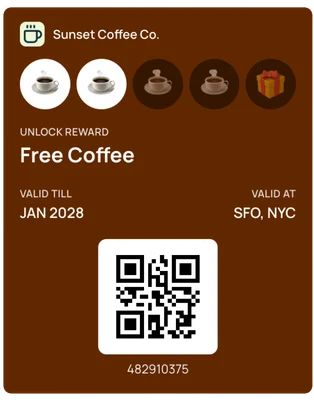
Loyalty“Create a stamp card for Sunset Coffee Co. with a free coffee after 5 stamps.”
Done! Here's your stamp card and a sign-up link for your counter.
Issue member cards from a list
Membership“Make a Jimmy Gym membership card for everyone on this list.”
Done! Each member has their own card and link.

Update one member's card
Update“Move John Davis to Gold, valid until September 2030.”
Done! John's card updates on his phone straight away.

Message everyone who saved a card
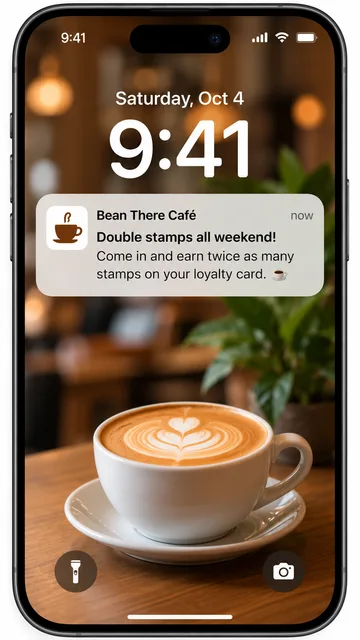
Notification“Tell everyone with the Bean There Café card: ‘Double stamps all weekend.’”
Here's the message. Send it to everyone who saved the card?
Add a stamp at the counter
Loyalty“Give Sarah a stamp on her Sunset Coffee card.”
Done! Three more stamps to her free coffee.

Check what's live
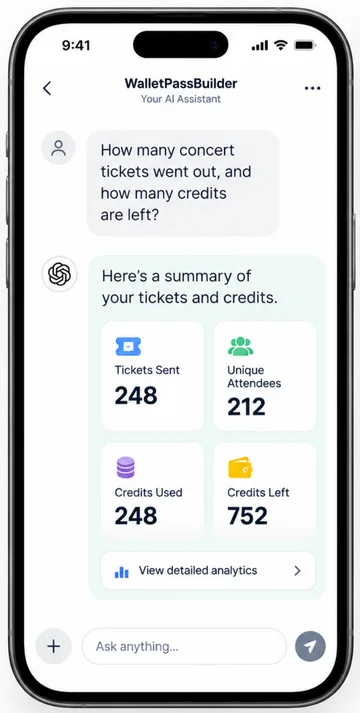
Analytics“How many concert tickets went out, and how many credits are left?”
Here's a summary of your tickets and credits.
1. Connect WalletPassBuilder to Grok
- Open grok.com/connectors and click New Connector.
- Choose Custom. If it asks for a name, use WalletPassBuilder. For the server URL, paste:
https://walletpassbuilder.com/api/mcp - Grok opens WalletPassBuilder’s sign-in in a pop-up (allow pop-ups from grok.com if your browser blocks it). Sign in and click Approve.
- Start a new chat and ask for a pass.
On Grok Business or Enterprise
An admin provisions the connector for the team first, in the xAI cloud console. Each person then connects it and signs in with their own WalletPassBuilder account.
Grok doesn’t pick up the message you sent before connecting, so send a new one once it’s connected.
2. Create your first pass
With the connector added, describe the card:
Grok turns that into a pass: the business name, a title, up to three fields on the front, the QR code and anything you want on the back. With no logo image, it uses a simple icon in the card’s color, and you can send a logo URL instead. It replies with the share link.
For a whole list of people, paste the list and ask for “a card for each person”. Grok makes one pass with a card per person, each with its own link, up to 500 at a time.
3. Put it on a phone
Send the share link by email, text or chat. The page it opens checks the device:
- On an iPhone, an Add to Apple Wallet button adds the pass.
- On Android, an Add to Google Wallet button adds the same card.
- On a computer, the Apple Wallet button shows a QR code to scan with an iPhone.
More on that step in how to add a pass to Apple Wallet or Google Wallet.
4. Change it later
A saved pass isn’t a snapshot. Ask Grok to change it, in the same chat or a new one: “Move Priya to Premium and set her renewal to March 2027.” Only what you name changes, and the card updates on every phone it’s saved on. Updates don’t use credits.
5. Run a loyalty program
“Create a stamp card for Bean There Café: 8 stamps, a free coffee as the reward, a cream background.” Grok creates the program and gives you its sign-up link. Put that on a QR sign at the counter and every customer who scans it gets their own card.
Later, “Give Sam Lee a stamp” adds one to Sam’s card, and “Who joined this week?” lists your customers and their progress. For the counter itself, the dashboard’s staff scanner is quicker. See loyalty cards for small businesses for how to set up the program itself.
6. Send an offer to the lock screen
“Tell everyone with the Bean There card: double stamps all weekend.” Grok shows you the exact message and which pass it’s for, and sends it only after you say yes. It appears on the lock screen in Apple Wallet and on the card in Google Wallet. You can also schedule it: “Send it Saturday at 9am.”
Keep messages rare and useful. Our wallet pass notifications guide covers what works.
What Grok can’t do
- See or change your billing, API key, team or password.
- See your loyalty customers’ phone numbers.
- Keep access after you disconnect it: open API in the dashboard, then Connected apps, and click Disconnect.
Frequently asked questions
Can Grok create an Apple Wallet pass?+
Yes. Add WalletPassBuilder as a custom connector in Grok, describe the pass in a chat, and Grok creates it and gives you a link that adds it to Apple Wallet on an iPhone. The same pass works in Google Wallet on Android.
How do I add WalletPassBuilder to Grok?+
Go to grok.com/connectors, click New Connector, choose Custom, paste https://walletpassbuilder.com/api/mcp and sign in to WalletPassBuilder when asked. On Grok Business and Enterprise, an admin adds the connector for the team first.
Does the pass work in Google Wallet too?+
Yes. Every pass WalletPassBuilder makes works in both wallets, and its one share link opens the right one on each phone.
Do I need to design a template first?+
No. Grok fills in the design from your description: the business name, colors, fields, barcode and back of the pass. You can also start from a design you made in the dashboard and ask Grok to change it.
Does it cost extra?+
No. Grok uses the same pass credits as the dashboard: 1 per pass created or saved to a wallet, whichever total is higher. Updates, notifications and reading your passes are free. New accounts get free credits to start.
Can Claude and ChatGPT do the same?+
Yes. WalletPassBuilder is in Claude's Connectors Directory and ChatGPT's app directory. See the guides to creating an Apple Wallet pass with Claude and with ChatGPT.
Sources
Apple’s newer developer pages load dynamically, so where a number comes from Apple it is taken from its Wallet Developer Guide and support pages. If Apple’s or Google’s current documentation differs, follow theirs.
- xAI docs: Grok connectors
- Model Context Protocol: Authorization
- Apple: Wallet Developer Guide, Updating Passes
More guides
- Apple Pass Designer: what it can’t doApple’s Pass Designer and iOS 27’s Create a Pass make Apple Wallet passes, but not passes that update. What each tool does, and what you need for updates, stamps, points and notifications.
- How to create Apple Wallet and Google Wallet passes with ZapierConnect WalletPassBuilder to Zapier to give every new customer, member or form sign-up their own Apple Wallet and Google Wallet card, keep it up to date, and react when someone saves it.
- The wallet pass MCP server: Apple Wallet and Google Wallet passes from any AI clientConnect Claude Code, Cursor, VS Code or any MCP client to WalletPassBuilder's remote MCP server and create, update and message Apple Wallet and Google Wallet passes from a prompt. Setup, the 13 tools and sign-in.
- Apple Wallet enhanced event tickets: the new event ticket designWhat Apple Wallet’s enhanced, poster-style event tickets show, which iPhones support them, the semantic tags a ticket needs, why they need NFC entry, and iOS 27’s poster passes that work with a QR code.